theaaronloy_

Top Menu

  • Home
  • About
  • Contact
  • Disclaimer

Main Menu

  • Rants
  • Singapore
  • World
  • Life
  • Art
  • Food
  • Travels
  • Music
  • Games
  • Astronomy
  • Tech
  • Science
  • Eco
  • Business
  • Finance
  • Bargains
  • Randomness
  • Scam Watch
  • How To
Sign in / Join

Login

Welcome! Login in to your account
Lost your password?

Lost Password

Back to login
  • Home
  • About
  • Contact
  • Disclaimer

theaaronloy_

theaaronloy_

  • Rants
  • Singapore
  • World
  • Life
  • Art
  • Food
  • Travels
  • Music
  • Games
  • Astronomy
  • Tech
  • Science
  • Eco
  • Business
  • Finance
  • Bargains
  • Randomness
  • Scam Watch
  • How To
Tech
Home›Tech›Replace Singtel Extreme’s 2Wire 5012NV Modem – Method 2
Replace Singtel Extreme’s 2Wire 5012NV Modem – Method 2

By aaron loy
August 22, 2012
14630
2
Share:

So, this is the 2nd way to replace Singtel's 2Wire 5012NV Modem while maintaining the use of your Mio TV and Mio Voice services.

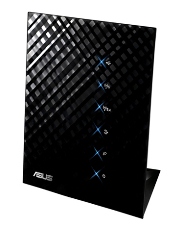
Again, please note that this requires you to buy the Asus RT-N56U router. The reason is because they have recently added support for Mio services in the latest firmwares, making it a heck of a lot easier for an average person like you and me to set it up without knowing things like VLAN tagging.

At the end of this, Mio TV would be connected to LAN port 4 and the 2wire router connected to LAN port 3 for Mio Voice, leaving ports 1 & 2 for normal internet use. No additional settings for Mio Voice.

Step 1: Update Firmware

a. Download the firmware

The first step is to make sure that the firmware is 1.0.1.8b and above. I'm using 1.0.1.8g at the time of writing this. To minimise the chance of trouble later on, download the firmware with your existing connection first.

b. Update the firmware

Connect the router via LAN, switch it on, open your internet browser and type the URL as 192.168.1.1 to access the control panel. The default username and password is admin/admin. Skip the automatic setup for now if it comes up.

Go Advanced Settings (left panel) -> Administration -> Firmware Upgrade. Use 'choose a file' to select the firmware that you've downloaded and click 'upload'.

After it restarts, access the control panel again and you should see the latest firmware version at the top.

Step 2: Settings – Singtel Mio Preset

Go Advanced Settings (left panel) -> WAN -> Internet Connection.

Near the bottom, you should see 'Special Requirement from ISP' with an option to 'Select ISP'. Choose 'Singtel Mio'. You should see then that the functions for LAN port 3 & 4 has been selected for you. Click 'Apply' to confirm. Feel free to power down after this.

Note that you can't access the router via ports 3 & 4 after this, only 1 & 2, so don't panic if you're not getting a connection after this setting as you were probably connected to the wrong port.

Step 3: Connection

This is how it should be connected: Optical Network Terminal (ONT) -> Asus RT-N56U

Port 1 & 2 – Your Computers
Port 3 – 2Wire 5012NV (Mio Voice)
Port 4 – Mio TV Box

Step 4: Starting Up

Switch eveything off. Power up the devices in this order: ONT – N56U – Mio TV and Mio Voice

Let the automatic setup run it's course. Set up what's needed (like wireless) and remember to change your control panel password.

Mio Voice usually takes awhile to come online again so check back later. Don't worry about the red lights, if any, and just make sure that everything's working as it should.

Have fun~~

Previous Article

3 Ways to Replace Singtel Extreme’s 2Wire ...

Next Article

Diner En Blanc, Tachée?

0
Shares
  • 0
  • +
  • 0
  • 0
  • 0
  • 0

Related articles More from author

  • Tech

    Casio ProTrek PRW-3000T-7 Titanium Unboxing and Review

    August 21, 2013
    By aaron loy
  • BusinessRantsSingaporeTech

    How Singtel is Cheating iPhone 5 Customers. Maybe Starhub and M1 as well.

    April 18, 2013
    By aaron loy
  • Tech

    Sony’s New Mirrorless Full Frame NEX Camera – Why It Might Work

    August 15, 2013
    By aaron loy
  • BargainsSingaporeTech

    Viewqwest Promotion

    August 6, 2017
    By aaron loy
  • BusinessScienceTechTravels

    Powertrekk Portable Fuel Cell Charger Preview – A Battery Scam?

    March 1, 2012
    By aaron loy
  • SingaporeTech

    Viewqwest Review

    June 2, 2015
    By aaron loy

  • Food

    Craft Tea Fox Review – Smooth & Awesome Latte?

  • Bargains

    iHerb Discount for Existing Customers

  • SingaporeTech

    D-BOX Review – Golden Village Bishan – ft Captain America: The Winter Soldier

Cheap Supplements Online Store Singapore!


Support the World Wildlife Fund

Disclaimer

This Site is User Supported: theAARONLOY// is reader-supported. When you buy through links on our site we may earn an affiliate commission.

Affiliate Links: Assume all outgoing links are affiliate links. Your price remains unchanged (you get better prices sometimes!), yet you'll be able to support the site. Also, this allows us to monetize the site without resorting to conflicting sponsorships.

Non-Sponsored Reviews: Assume all reviews/articles are not sponsored unless noted. Example: Most of my restaurant reviews are made unannounced, with food paid for by yours truly. I don't believe in PAP-style inspections and Gushcloud-ish BS.

Full disclaimer here.