Replace Singtel Extreme’s 2Wire 5012NV Modem – Method 2
So, this is the 2nd way to replace Singtel's 2Wire 5012NV Modem while maintaining the use of your Mio TV and Mio Voice services.
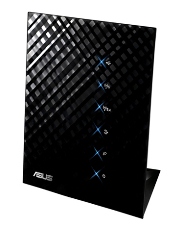
Again, please note that this requires you to buy the Asus RT-N56U router. The reason is because they have recently added support for Mio services in the latest firmwares, making it a heck of a lot easier for an average person like you and me to set it up without knowing things like VLAN tagging.
At the end of this, Mio TV would be connected to LAN port 4 and the 2wire router connected to LAN port 3 for Mio Voice, leaving ports 1 & 2 for normal internet use. No additional settings for Mio Voice.
Step 1: Update Firmware
a. Download the firmware
The first step is to make sure that the firmware is 1.0.1.8b and above. I'm using 1.0.1.8g at the time of writing this. To minimise the chance of trouble later on, download the firmware with your existing connection first.
b. Update the firmware
Connect the router via LAN, switch it on, open your internet browser and type the URL as 192.168.1.1 to access the control panel. The default username and password is admin/admin. Skip the automatic setup for now if it comes up.
Go Advanced Settings (left panel) -> Administration -> Firmware Upgrade. Use 'choose a file' to select the firmware that you've downloaded and click 'upload'.
After it restarts, access the control panel again and you should see the latest firmware version at the top.
Step 2: Settings – Singtel Mio Preset
Go Advanced Settings (left panel) -> WAN -> Internet Connection.
Near the bottom, you should see 'Special Requirement from ISP' with an option to 'Select ISP'. Choose 'Singtel Mio'. You should see then that the functions for LAN port 3 & 4 has been selected for you. Click 'Apply' to confirm. Feel free to power down after this.
Note that you can't access the router via ports 3 & 4 after this, only 1 & 2, so don't panic if you're not getting a connection after this setting as you were probably connected to the wrong port.
Step 3: Connection
This is how it should be connected: Optical Network Terminal (ONT) -> Asus RT-N56U
Port 1 & 2 – Your Computers
Port 3 – 2Wire 5012NV (Mio Voice)
Port 4 – Mio TV Box
Step 4: Starting Up
Switch eveything off. Power up the devices in this order: ONT – N56U – Mio TV and Mio Voice
Let the automatic setup run it's course. Set up what's needed (like wireless) and remember to change your control panel password.
Mio Voice usually takes awhile to come online again so check back later. Don't worry about the red lights, if any, and just make sure that everything's working as it should.
Have fun~~